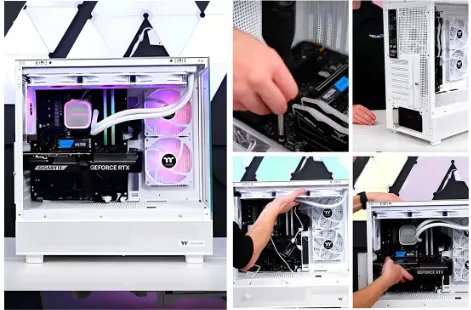
Building your first gaming PC feels more complicated than it is. Walk into any forum and you'll find a wall of acronyms, heated arguments about which CPU cooler is three percent better, and someone insisting you absolutely need a part that costs more than your entire budget.
Ignore all of that.
The honest truth is this: building a gaming PC is closer to assembling flat-pack furniture than performing surgery. The parts are designed to fit together a specific way. If something's going the wrong direction, you'll know before you force it. And the result — a machine you picked, assembled, and turned on yourself — hits differently than anything you'll buy off a shelf.
Under $800 in 2026 gets you further than it ever has. GPU performance-per-dollar has improved significantly across the mid-range, and the platform choices at this price point are genuinely good. You can build a rig that runs modern games at 1080p high settings and handles 1440p on many titles without compromise.
This and other gaming hardware guides and PC build advice walks you through every step: what to buy, why, how to put it together, and what to do when something doesn't work on the first try (it happens, it's fine, it's fixable).
What $800 Gets You in 2026
Before diving into specific parts, here's what to expect from an $800 build in terms of real-world performance:
- 1080p gaming: High to ultra settings on virtually any current title, 60–144fps depending on the game
- 1440p gaming: Medium to high settings on most titles, 60fps+ on the majority
- 4K gaming: Not the target for this budget — possible on less demanding titles but not the sweet spot
- Content creation: Capable of light video editing and streaming, though not a primary workstation
This is a gaming-first build. Every dollar is pointed at frame rates, not RGB lighting, premium aesthetics, or overclock headroom you won't use.
The Parts List (And Why Each One Made the Cut)
CPU: AMD Ryzen 5 7600 (~$170)
The Ryzen 5 7600 is the straightforward answer for a budget gaming build in 2026. Six cores, solid single-thread performance, and a platform (AM5) with a meaningful upgrade path if you want to drop in a better processor two years from now without replacing your motherboard.
AMD's AM5 platform also includes PCIe 5.0 support, which means you're not buying into a dead-end socket. For a first build, that future-proofing matters more than the incremental performance gains you'd see from spending $80 more on a processor.
What it handles: Every modern game without bottlenecking a mid-range GPU. It won't hold back your frame rates.
What it doesn't do: Competitive workstation workloads, heavy 3D rendering, video production at scale. This is a gaming CPU, and it's very good at being a gaming CPU.
Motherboard: MSI PRO B650-P WiFi (~$130)
The B650 chipset is the right tier for this build. You get AM5 compatibility, PCIe 4.0 for your GPU and storage, USB 3.2 on the rear panel, and built-in WiFi 6 — which matters more than people give it credit for if you're not running ethernet to your desk.
The MSI PRO B650-P sits at the sweet spot between price and feature set. It's not a flashy board, and that's fine. A motherboard's job is to connect your components reliably and stay out of the way. This one does that.
What to check before buying: Confirm your board ships with updated BIOS for your specific CPU. Most retailers and manufacturers are good about this now, but it's worth verifying. A board that needs a BIOS update before it'll POST with your CPU requires either a workaround or a trip back to the store.
RAM: 32GB DDR5-5200 (2x16GB) (~$70)
RAM prices have settled to the point where 32GB is the obvious choice for any build in 2026. Games are using more memory than they did three years ago, and 16GB is starting to feel tight on titles that load large open worlds or run alongside a browser, Discord, and a streaming app.
DDR5 is the standard for AM5, and 5200MHz is the sweet spot — fast enough to not leave performance on the table, not so fast that you're paying a premium for speed the CPU won't fully utilize.
Get a 2x16GB kit rather than a single 32GB stick. Dual channel memory provides a meaningful bandwidth improvement in real workloads.
GPU: AMD RX 7700 XT (~$260)
The GPU is the most important component in a gaming build. Everything else feeds it; this is where games actually happen.
The RX 7700 XT hits the sweet spot for this budget tier in 2026. It handles 1080p at high/ultra settings in any current title and delivers solid 1440p performance on most games. AMD's driver situation has matured considerably — the gap in software quality between AMD and NVIDIA that used to be a real concern has narrowed to the point where it's not a meaningful factor at this price point.
At ~$260, it leaves enough budget headroom for good components everywhere else, which is the right approach. A GPU bottlenecked by slow RAM or a weak CPU throws money away.
NVIDIA alternative: The RTX 4060 competes directly in price and performance. It has a slight edge in ray tracing and DLSS quality over AMD's FSR, which matters if those features are important to you. Either is a solid choice; neither is wrong.
Storage: 1TB NVMe SSD PCIe 4.0 (~$70)
Don't buy a hard drive for your primary drive in 2026. NVMe SSDs at the 1TB tier are cheap, fast, and the difference in game load times and system responsiveness is not subtle.
PCIe 4.0 NVMe drives offer substantially faster read/write speeds than SATA SSDs at a minimal price premium. The Samsung 980 Pro, WD Black SN770, and Crucial P3 Plus are all reliable options in this range.
1TB fills up faster than you think when games routinely run 60–100GB each. Budget for a second drive (HDD or budget SSD) down the road if storage is a concern, but 1TB is the right starting point for most builders.
PSU: Seasonic Focus GX-650 80+ Gold (~$85)
The power supply is the component people consistently under-budget and over-compromise on. A cheap PSU doesn't just risk your build — it risks every component connected to it. A failed PSU under load can take your GPU, motherboard, and storage with it.
The Seasonic Focus GX-650 is overkill for reliability — which is exactly what you want. 650W is sufficient headroom for this build (actual load will be under 450W under full gaming), and Seasonic's build quality and warranty are the benchmark in the PSU category.
Don't cheap out here. This is a place where the $20 you save can cost you $400.
Case: Fractal Design Pop Air (~$75)
A good case makes building easier and keeps your components cool. The Fractal Design Pop Air hits both. It ships with three pre-installed 120mm fans — actual airflow included, not a promise — has a clean interior layout with a routed cable management channel, and the tool-free drive bays make installation forgiving for first-time builders.
It's not the flashiest option on the market, and it doesn't need to be. Your GPU is doing the work. The case is just making sure it stays cool while it does.
CPU Cooler: Thermalright Assassin X 120 R SE (~$25)
The Ryzen 5 7600 ships with a stock cooler that will keep it functional, but you'll get meaningfully lower temperatures — and quieter operation — from a budget aftermarket cooler. The Thermalright Assassin X 120 R SE is consistently rated among the best value coolers available and outperforms options twice its price.
Lower temperatures mean sustained performance under load and a longer hardware lifespan. $25 is a straightforward investment.
Complete Build Summary
| Component | Part | Approx. Cost |
| CPU | AMD Ryzen 5 7600 | ~$170 |
| Motherboard | MSI PRO B650-P WiFi | ~$130 |
| RAM | 32GB DDR5-5200 (2x16GB) | ~$70 |
| GPU | AMD RX 7700 XT | ~$260 |
| Storage | 1TB NVMe PCIe 4.0 SSD | ~$70 |
| PSU | Seasonic Focus GX-650 Gold | ~$85 |
| Case | Fractal Design Pop Air | ~$75 |
| CPU Cooler | Thermalright Assassin X 120 R SE | ~$25 |
| Total | ~$885 |
Prices fluctuate. Sales on GPU and motherboard regularly bring this under $800. Watch for Amazon, Newegg, and Micro Center deals before you buy.
The Build: Step by Step
Before You Touch Anything
Clear a large, well-lit workspace. A kitchen table works fine. Keep the boxes nearby — the anti-static bags components ship in are useful staging surfaces.
Ground yourself before handling components. Touch a metal surface (a doorknob, a grounded appliance) or wear an anti-static wrist strap if you have one. Modern components are more resilient than the anti-static warnings imply, but it's a good habit.
Read the motherboard manual. This isn't optional. The manual tells you exactly which RAM slots to use (spoiler: not both slots closest to the CPU), where the front-panel connectors plug in, and how your specific board wants to be configured.
Step 1: Install the CPU
Open the CPU socket lever on your motherboard. Align the small triangle on the corner of the Ryzen CPU with the triangle marker on the socket — this is the only correct orientation. Lower it in. Don't push or force it; it drops in from gravity. Close the lever.
That's the hardest part. It's genuinely not hard.
Step 2: Install the RAM
Refer to your motherboard manual for the correct dual-channel slots — typically slots A2 and B2 (second and fourth from the CPU). Press firmly and evenly until both clips snap. You'll hear and feel the click. If it's not clicking, check that you're in the right slots and applying even pressure along the full length of the stick.
Step 3: Install the CPU Cooler
Apply a small dot of thermal paste (about the size of a grain of rice) to the center of the CPU heat spreader if your cooler doesn't include pre-applied paste. Mount the cooler according to its included bracket instructions for AM5. Connect the fan header to the CPU_FAN header on your motherboard.
Step 4: Install the M.2 SSD
Your motherboard has an M.2 slot — check the manual for which one is PCIe 4.0 (typically the top slot closest to the CPU). Slide the drive in at an angle, press it down, and secure it with the retention screw. Some boards use a screwless clip mechanism; your manual will show which.
Step 5: Mount the Motherboard in the Case
Your case ships with brass standoffs pre-installed in the ATX motherboard pattern. Lower the motherboard in, align the rear I/O shield (which attaches to the back of the case), and seat the board onto the standoffs. Start every screw finger-tight before tightening any of them fully. Six to nine screws, working from the center outward.
Step 6: Install the PSU
Most modern cases mount the PSU at the bottom rear with the fan facing downward (toward a bottom air intake vent). Slide it in, secure the four rear screws, and route the cables through the cable management cutouts before connecting anything. Untangling cables after the fact is the most frustrating part of a build you can avoid with 90 seconds of planning.
Cables you'll need: 24-pin ATX (motherboard power), 8-pin EPS (CPU power — top of the motherboard), and PCIe power cables for the GPU.
Step 7: Install the GPU
The GPU goes in the primary PCIe x16 slot — the longest slot, closest to the CPU. Remove the corresponding rear case brackets. Press the GPU in firmly until the retention clip clicks. Secure the GPU bracket to the case with the screws you removed. Connect the PCIe power cables from the PSU.
Step 8: Cable Management
Route cables through the grommeted cutouts in your case's motherboard tray. Bundle and tie cables that run parallel. This isn't about aesthetics (though it helps airflow); it's about not having a loose cable interfere with a fan six months from now. Zip ties take two minutes and save headaches.
Step 9: First Boot
Connect your monitor, keyboard, and mouse. Plug in power. Press the power button.
If it POSTs (you see a screen, likely a motherboard logo or a BIOS screen), you built a computer. Congratulations.
If nothing happens, work through the checklist:
- Is the 24-pin ATX fully seated?
- Is the 8-pin EPS plugged in? (Forgetting this is the most common first-boot mistake)
- Is the RAM in the correct dual-channel slots?
- Is the GPU PCIe power connected?
- Is the front-panel power button header connected to the correct motherboard pins?
First-boot issues are almost always a missed connection, not a failed component. Stay calm and check each one methodically.
Step 10: Install Your OS and Drivers
Boot from a Windows USB drive (create one using the Media Creation Tool on any Windows machine) or your Linux distribution of choice. Install the OS, then download your GPU drivers directly from AMD or NVIDIA's website. Install your motherboard chipset drivers from the manufacturer's support page.
Run Windows Update fully before installing games. Yes, all of them.
What to Upgrade First When Your Budget Grows
This build has a clear upgrade path:
First upgrade: A second SSD or a 2TB HDD for game storage. You'll fill 1TB faster than expected.
Second upgrade: A 1440p 144Hz monitor if you're still running 1080p. This is where the RX 7700 XT really starts to shine.
Third upgrade: CPU — the AM5 socket will support future Ryzen generations, meaning you can drop in a significantly faster processor without touching the rest of the build.
Fourth upgrade: GPU — in 2–3 years, the next generation of mid-range GPUs will be available at today's $260 price point with substantially better performance.
The Bottom Line
An $800 gaming PC in 2026 is genuinely capable. Not in a "manages if you turn everything down" way — in a "plays everything you want at settings that look good" way. The parts exist to do this well, and building it yourself gives you something a prebuilt never will: a machine you understand completely, that you can upgrade piece by piece, and that you built with your own hands.
The first boot is one of the better feelings in tech. You earned it.